
Enye (ñ) — which is the only letter in the 27-letter Spanish alphabet that originated in the 18th century — has been included in the Filipino alphabet as a separate letter.
Despite being included in the Filipino alphabet, Enye does not have a separate button on either the Mobile or Computer keyboards.
According to Wikipedia, ñ which is pronounced as Enye is formed by placing tilde (~) on the English letter n or N.
Unlike English letters, you can’t simply type Enye on your Mobile, Windows, Mac, Google Docs, Chromebook, Canva or other places.
To type Enye on your Mobile or PC keyboards, you are required to use some combinations. Those who don’t know how to type Enye on Mobile or PC end up typing it N or n because it sounds a bit similar.
Unfortunately, people living in the Phillippines can’t ignore it because they have many places in their country that contain Enye.
Some of them are Las Piñas, Niño, Iñigo and Dasmariñas. The universal keyboards don’t have Enye does not mean that we can’t type it on our cell phones or computers.
The only thing we need to type Enye on our device is knowledge and that’s the reason why we have created this website.
The sole aim of creating this website is to teach people across the world to type Enye on their devices or software — Mobile, Windows PC, Mac, Google Docs, Canva, and more.
Irrespective of which place you want to use Enye, we have a guide teaching you the same in a very simple way.
All you need to do is visit our website and search for the same. When you do so, you will be shown a guide walking you through the entire process in a very simple way.
Enye Copy Paste
The first and easiest way to use Enye on your Mobile or PC is to copy and paste it.
Irrespective of which place you want to use Enye, you only need to copy it from here. Once copied, you can paste it to the site where you want to use it.
To copy on your computer, you need to select the ‘ñ or Ñ or press Ctrl+C buttons on your keyboard.
Once you have it copied into your clipboard, open up the document or application where you want to paste it and then press the Ctrl+V button on your keyboard.
If you are struggling to copy Enye on a PC using your keyboard shortcut, you can select it and then right-click on your mouse and then choose the Copy option.
Once copied, open up the application or document select the place where you want to paste it and then right-click on your mouse and then choose paste.
When you do so, you will have the ñ or Ñ pasted there.
To copy Enye on a Mobile device, you only need to visit our website and then tap and hold on ñ or Ñ and then select it properly.
When you do so, a couple of options will appear on the screen. What option you need to choose is Copy and then go to the place where you wish to use it and then tap and hold and then select Paste.
When you do so, the En-ye will be pasted there.
The last option you could use to copy the Enye on your Mobile and PC is by clicking the copy button next to small and big Enye.
ñ
Ñ
There is no denying that copy-pasting Enye is an easy option but what if tell you about better options?
The best thing about the following options is you don’t need to copy and then go back to documents or applications and then paste the Enye.
If you follow the methods mentioned below, you will be able to type Enye on your keyboard.
The only thing you need to do is use some combination of buttons. To know what those combinations are and how they work, you need to keep on reading.
How to Type Enye On A Computer Keyboard (2024)
There are multiple ways that can be used to type En-ye on a computer keyboard.
Since our website is dedicated to Enye, we will explain each method in detail.
1. Type Enye Using Numpad
As mentioned above, a user can type Enye by using a combination. If you have a PC or Laptop that has a numeric keyboard then you need to follow a couple of steps:
To type small ñ on your computer keyboard, you need to press and hold Alt and then enter 164 or 0241.

These are two combinations that will help you create en-ye on your computer or laptop.
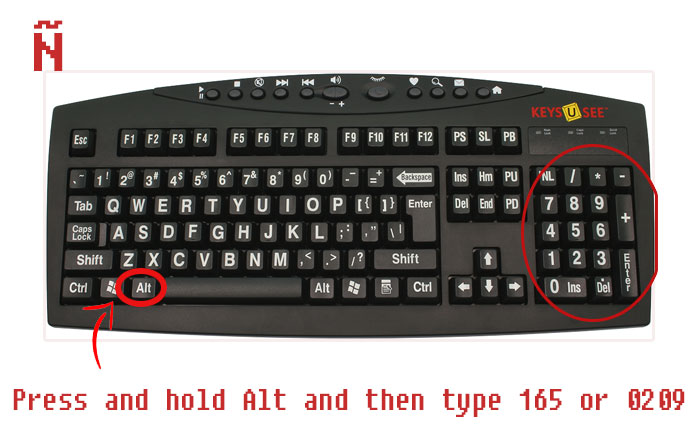
To type big Ñ on your computer, you need to press and hold Alt and then enter 165 or 0209. When you type these combinations, you will have the big Ñ created on your computer screen.
2. Type Enye Without Numpad
If your Laptop or Windows PC does not have a numeric keyboard and you wish to type enye without Numpad then you will have to use the Character Map.
If you don’t know how to use the character map on PC then follow the steps written below:
First, you need to press the Windows button and then search for Character Map. After that, you need to open the Character Map app.
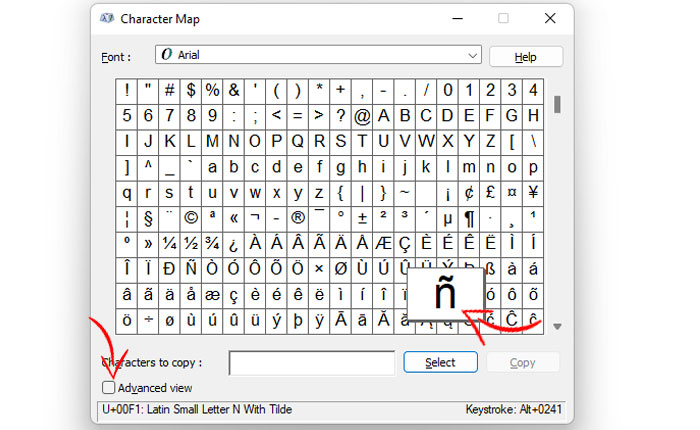
In the character map, you can easily the small ñ at the bottom of the screen as shown in the above image.
Unlike ñ, finding Ñ is a bit hard. To do so, you need to click on the ‘Advanced View’.
After clicking on the ‘Advanced View‘ option of the character map, you need to type n and then search for it.
When you do so, you will have the Big Ñ Enye appear on the right side of the map.
Once found, click on it and then click on the ‘Select‘ button. After that, click on the Copy button and then go to the application or document where you want to use it and then press Ctrl+V.
When you do so, the Enye will be pasted there.
3. Add Spanish Language On Windows
If Enye is not the only Spanish word that you type on Windows then it would be better for you to install Spanish language on your PC.
The process of installing the Spanish language on Windows is straightforward. However, if you don’t know the process then follow the steps written below:
First, press the Windows button and then search for ‘Settings‘. When you do so, a new window appears where you need to click on the ‘Time & Language’ option.
After that, you need to click on the ‘Language & Region’. There, you need to click on the ‘Add a Language’ option.
After clicking on the Add a Language option, you need to search for Spanish Language and then select it.
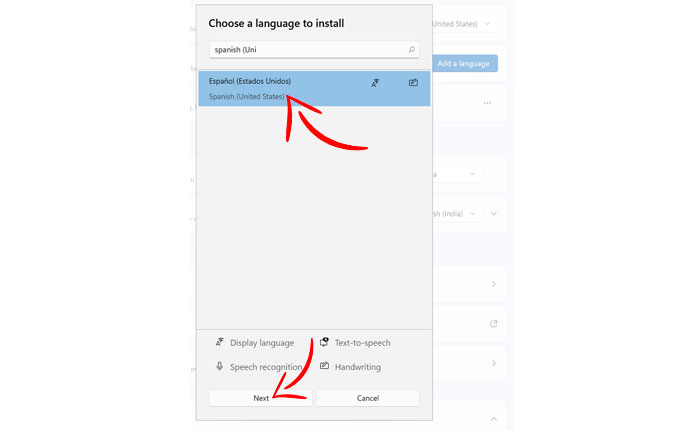
Once selected, click on the ‘Next‘ option. After that, you need to click on the ‘Install’ option to install Spanish language on your Windows.
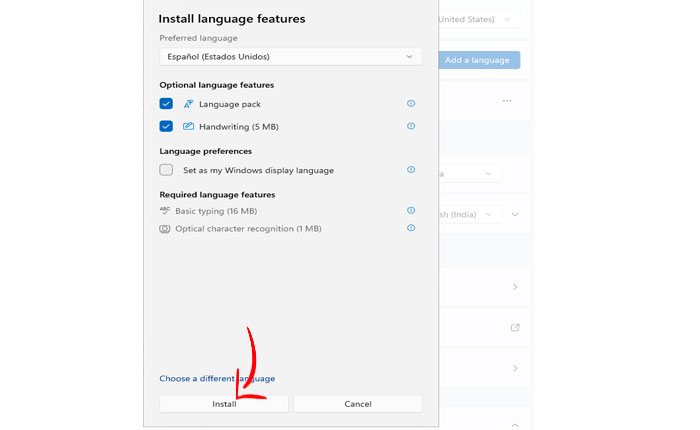
When you click on it, the Spanish language will begin installing on your Windows. Once it is installed, click on the three dots located far right side of the Spanish Language and then Language Options.
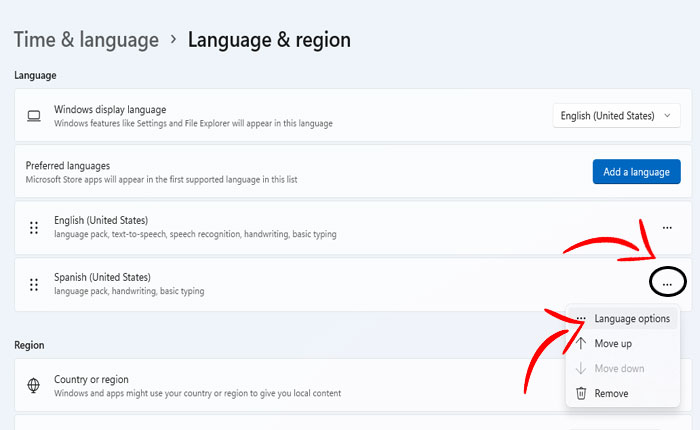
After that, click on the ‘Add a Keyboard‘ option. There, you need to select Spanish (United States) if you have not selected it yet.
Once it is added, you can type Enye on Notepad, Google Docs, MS Word, Email and anywhere where you type normal English.
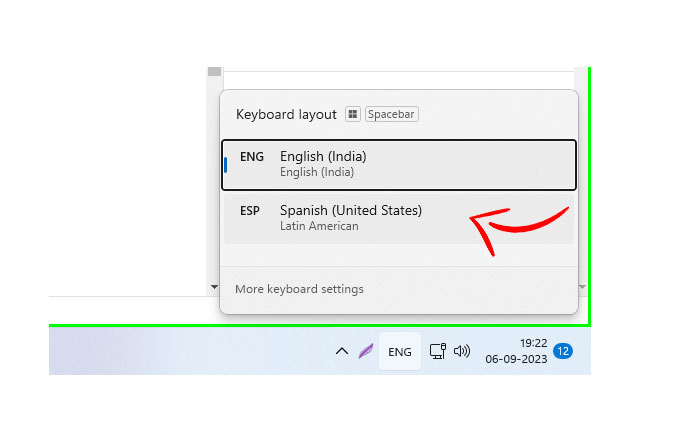
While typing Enye, make sure to Spanish Keyboard is enabled. All you need to do is press n or Shift N to type ñ or Ñ, respectively.
Type Enye On Microsoft Word
The process of typing Enye on Microsoft Word is straightforward. If you don’t know how then follow the steps written below:
- First, open the Microsoft Word on your PC.
- Once it is opened, open the file where you want to insert Enye (Ñ or ñ).
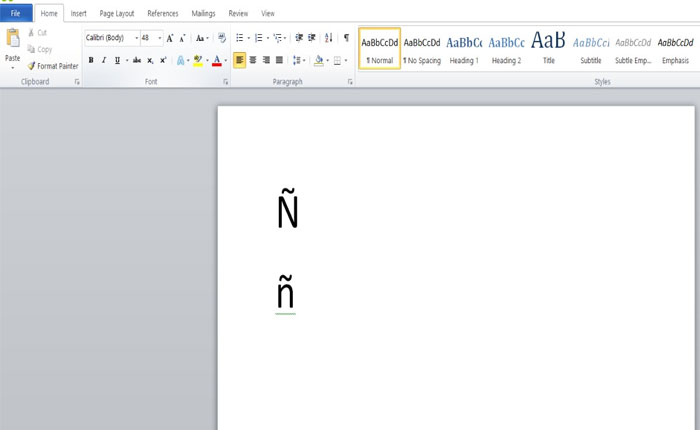
- Now, you need to press Ctrl+Shift+~ (tilde) at the same time.
- Now, release these buttons and then press Shift+n to Shift+N to type ñ or Ñ, respectively.
OR
Otherwise, open up Microsoft Word and then select the ‘Insert’ tab from the main menu.

After that, you need to click on the ‘Symbol’ option and then select ‘More Symbols’.
In a pop-up window, you need to select ‘Latin-1 Supplement‘ in the Subject drop-down option. After that, you need to select Enye and then click on the ‘Insert’ button to enter Enye in your Microsoft Word document.
Type Enye On Google Docs
Instead of Microsoft Word, I recommend you to use Google Docs for writing purposes.
The only thing you need to use Google Docs is an internet connection. If you use Google Docs but don’t know how to type Enye, you need to follow the steps written below:
- First, open up the Google Docs.
- Once it is opened, select ‘Insert’ from the main navigation menu.
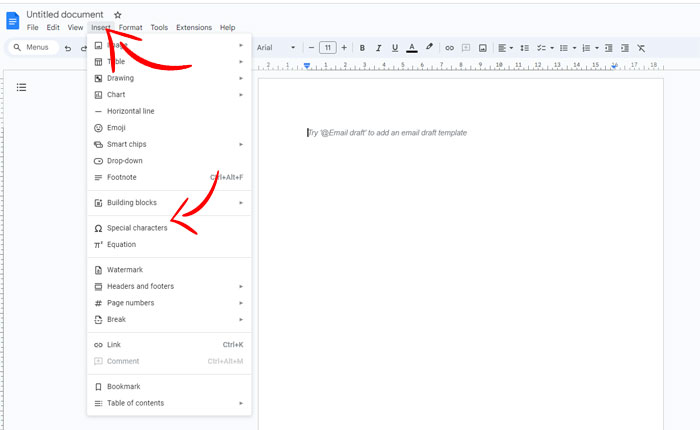
- When you do so, a huge list of options will appear on the screen. Now, select ‘Special Characters‘.
- After that, you need to select ‘Latin‘ or ‘Common’ in the field located next to Categories.
- Once selected, click on the Enye letter as shown in the below picture.
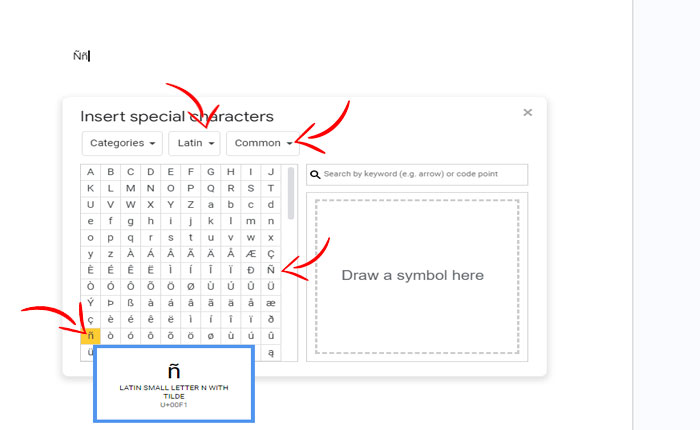
- When you do so, the Enye character will be typed in Google Docs.
- That’s it.
Type Enye On a Mac Computer
The procedure of typing Enye (Ñ or ñ) is pretty easy on a Mac computer. If you have a Mac device like a MacBook Pro, MacBook Air, or iMac but don’t know how to type Enye then follow the steps written below:
- First, open a document where you want to type Enye on a Mac.
- Once opened, press the Option and N keys at the same time. When you do so, ~ (tilde) will appear on the screen.

- When you ~ in the docs, press n or Shift+N to type ñ and Ñ, respectively.
- That’s it.
Type Enye On Mobile Phone
It is easier to type Enye on Mobile than on Windows, Mac and other devices. Irrespective of which country or region you live in, you can type Enye characters on your Mobile by simply following the steps written below:
- First, you need to open up the chat where you want to insert Enye characters on your phone.
- Once entered, tap on the text box to open up the Keyboard Layout.
- Once it is opened, tap and hold on N or n and then release it.
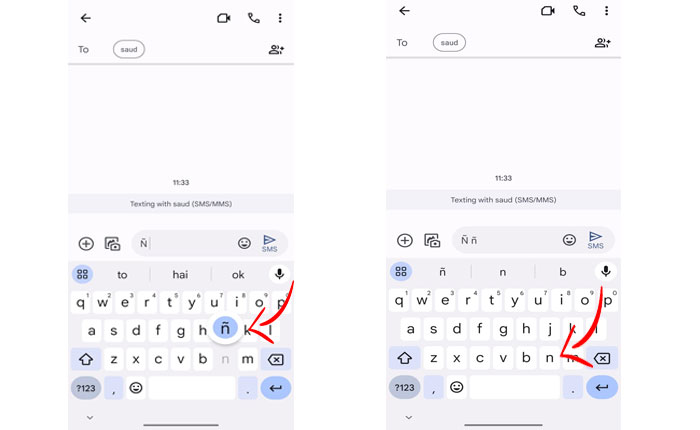
- When you do so, Ñ or ñ will be inserted there.
- That’s it.
Note: The process of typing the Enye letter on Android and iOS is the same right now.
Frequently Asked Questions
Q1. Can I Type Enye Letter Using Keyboard?
Ans: Yes, you can type Enye letters on Windows, Mac, Mobile, Microsoft Word, Excel, Google Docs and other devices using your keyboard.
Since Ñ or ñ don’t have a dedicated key on a Universal Keyboard, you are required to use a combination of a couple of keys to type the Enye letter on your device.
Regardless of where you want to type Enye letters, our website has got you covered.
Q2. How Do I Type Enye On Microsoft Excel?
Ans: To type Enye on Excel on your Laptop or PC, you need to open the Excel file or document where you want to type it and then go to Insert > Symbol > More Symbols > Select either Ñ or ñ > Insert.
When you do so, the Enye letters will be inserted into your Excel file or document.
Q3. How Do I Type Enye On Mac?
Ans: To type Enye on a Mac, you need to press the Options and N buttons simultaneously. After that, you need to type the lower or upper case of N to type Enye on a Mac.
Q4. How to Type Enye On Laptop Without Numpad?
Ans: To type enye on a Laptop or PC without numpad, go to Windows > Character Map > Advanced View > Search for ‘N with tilde > Select the Enye letter > Copy > Paste where you want.
Q5. What Is The ALT Code For Spanish Ñ or ñ?
Ans: The ALT codes of Spanish Ñ or ñ are — 165 or 164. You can also use ALT codes 0241 or 0208. Hope this article has been helpful to you and now you can easily insert the ñ character in your document.